
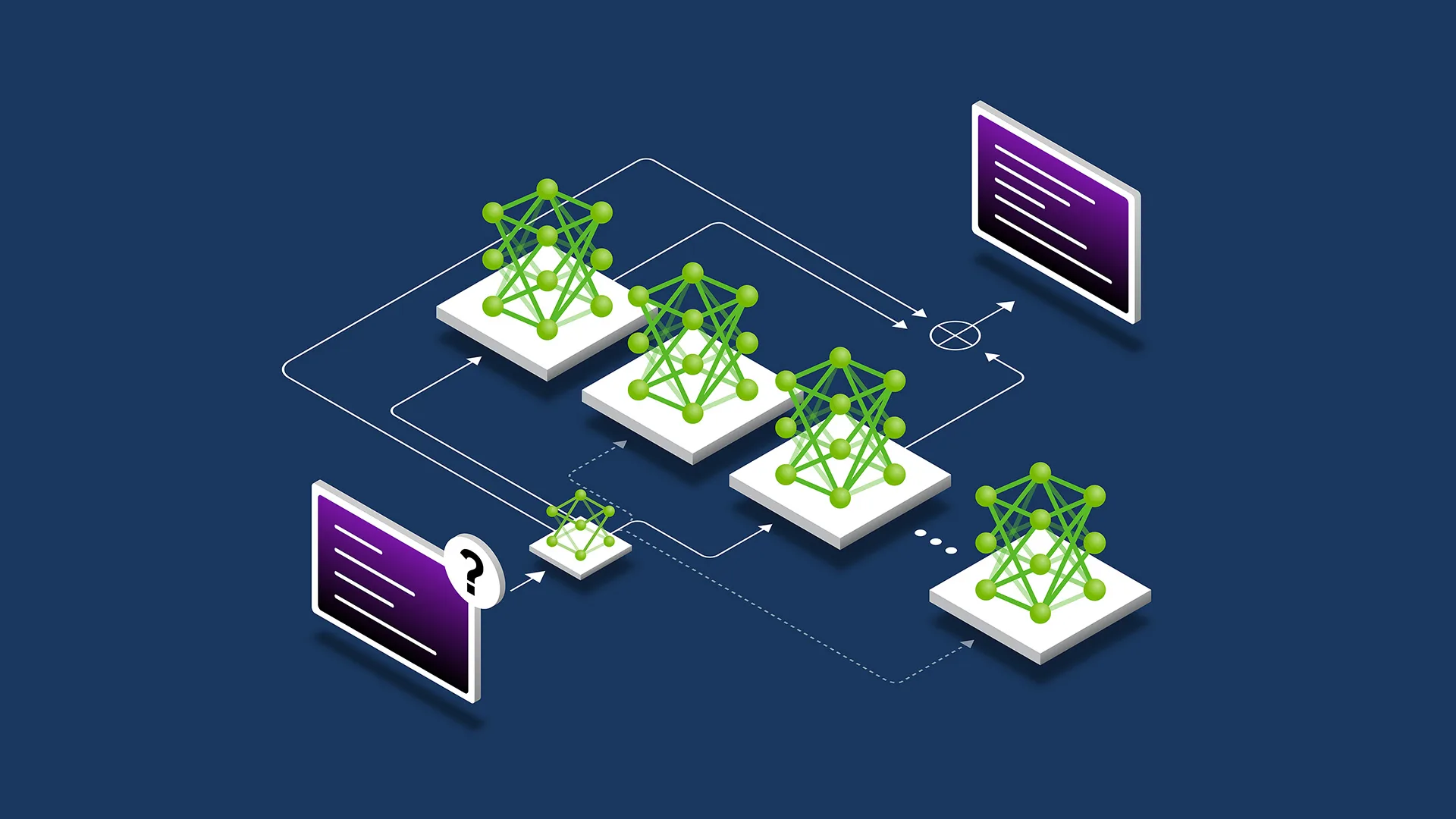
How to Optimize LLM Serving with NVIDIA Dynamo AIConfigurator
TL;DR
- NVIDIA Dynamo AIConfigurator automatically analyzes your workload and recommends the optimal hardware, parallelism strategy, and prefill/decode split for disaggregated LLM serving.
- It removes manual trial-and-error by exploring a massive configuration space using performance modeling and simulation.
- You can start using it today through the NVIDIA Dynamo framework to achieve higher throughput and lower cost without exhaustive benchmarking.
Deploying large language models at scale is complex. The best combination of GPU types, tensor/pipeline parallelism, prefill/decode separation ratios, and instance counts lives in a search space too large for manual tuning or brute-force testing. NVIDIA’s AIConfigurator, part of the Dynamo AI serving platform, solves this by intelligently recommending production-ready configurations tailored to your specific throughput, latency, and cost targets.
This guide shows you exactly how to use AIConfigurator right now to remove the guesswork from disaggregated LLM serving.
Prerequisites
Before starting, make sure you have:
- Access to an NVIDIA GPU cluster (H100, A100, or L40S recommended for production workloads)
- NVIDIA Dynamo framework installed (available via NGC or GitHub)
- Basic familiarity with Kubernetes or container orchestration
- A target workload defined (model size, expected queries per second, latency SLO, and cost constraints)
- Python 3.10+ environment for running the configuration tools
Note: If you do not yet have Dynamo installed, begin by pulling the latest container from the NVIDIA GPU Cloud (NGC) catalog.
Step 1: Install and Set Up NVIDIA Dynamo
First, deploy the core Dynamo serving stack. The fastest way is to use the provided Helm charts.
helm repo add nvidia https://helm.ngc.nvidia.com/nvidia
helm repo update

# Install Dynamo with AIConfigurator enabled
helm install dynamo nvidia/dynamo \
  --namespace dynamo \
  --create-namespace \
  --set aiconfigurator.enabled=true \
  --set gpuType=h100
Verify the pods are running:
kubectl get pods -n dynamo
You should see the aiconfigurator service alongside the Dynamo inference pods.
Step 2: Define Your Workload Profile
AIConfigurator needs a clear description of your serving requirements. Create a JSON workload specification file named workload.json:
{
  "model": "meta-llama/Llama-3-70B",
  "max_batch_size": 256,
  "target_qps": 1200,
  "latency_slo_ms": 150,
  "prefill_decode_split": "auto",
  "budget_usd_per_hour": 45,
  "gpu_type": ["H100", "A100"],
  "max_instances": 32
}
This file tells the configurator your model, desired queries-per-second (QPS), latency service-level objective (SLO), and budget.
Step 3: Run AIConfigurator to Generate Recommendations
Launch the configurator with your workload profile:
docker run --rm -v $(pwd):/workspace \
  nvcr.io/nvidia/dynamo/aiconfigurator:latest \
  --workload /workspace/workload.json \
  --output /workspace/recommendations.json \
  --explore-hours 2
The tool uses performance modeling and simulation to explore thousands of configurations in minutes instead of weeks of real-world testing.
When complete, open recommendations.json. You will see ranked configurations with predicted throughput, latency, cost, and confidence scores.
Example snippet from a typical output:
{
  "recommended_config": {
    "prefill_gpus": 16,
    "decode_gpus": 24,
    "tensor_parallel": 8,
    "pipeline_parallel": 2,
    "instance_count": 4,
    "predicted_qps": 1280,
    "p99_latency_ms": 132,
    "estimated_cost_per_hour": 38.4,
    "confidence": 0.92
  },
  "alternatives": [ ... ]
}
Step 4: Apply the Recommended Configuration
Use the generated config to deploy your disaggregated serving endpoints. Dynamo provides a deployment generator:
dynamo deploy --config recommendations.json \
  --namespace production \
  --name llama3-70b-serve
This command creates separate prefill and decode pools with the exact parallelism settings recommended by AIConfigurator.
Monitor the initial deployment:
kubectl get deployments -n production
dynamo status llama3-70b-serve
Step 5: Validate and Iterate
After deployment, run a short load test using tools like locust or NVIDIA’s own benchmarking suite:
dynamo benchmark --endpoint http://llama3-70b-serve \
  --qps 1200 \
  --duration 15m \
  --report report.html
Compare the actual metrics against AIConfigurator’s predictions. If the results deviate more than 10%, feed the real measurements back into the configurator for refinement:
docker run --rm -v $(pwd):/workspace \
  nvcr.io/nvidia/dynamo/aiconfigurator:latest \
  --workload /workspace/workload.json \
  --feedback /workspace/real_metrics.json \
  --output /workspace/refined_recommendations.json
Tips and Best Practices
- Start with conservative latency SLOs (e.g., 200ms) and gradually tighten them once you validate the configuration.
- Always include multiple GPU types in your search space — AIConfigurator often finds cost-effective mixes of H100 and A100.
- Use the
--explore-hoursflag to trade off recommendation time for deeper search on very large models. - Store workload profiles in version control so you can track how recommendations evolve as your traffic patterns change.
- Combine AIConfigurator with Dynamo’s continuous optimization loop for automatic re-tuning during traffic spikes.
Common Issues
Why am I getting "No feasible configuration found"?
This usually means your targets are too aggressive for the given budget or GPU types. Increase the budget_usd_per_hour or relax the latency_slo_ms and rerun.
The recommended split puts too many GPUs in decode — why?
Decode is typically the bottleneck for interactive chat workloads. AIConfigurator correctly allocates more resources to decode to maintain low time-to-first-token and high throughput.
How accurate are the predictions?
In NVIDIA’s internal benchmarks, AIConfigurator achieves >90% accuracy on throughput and latency predictions for Llama-3 and Mixtral models when using H100 GPUs. Always validate with a short canary deployment.
Can I use AIConfigurator without Kubernetes?
Currently the full deployment workflow is optimized for Kubernetes. For bare-metal or other orchestrators, export the config and manually apply the parallelism settings to your Dynamo instances.
Next Steps
After successfully deploying your first AIConfigurator-optimized endpoint, explore these areas:
- Integrate with Dynamo’s request router for intelligent traffic splitting between prefill and decode pools.
- Set up automated retraining of the configurator model using your own production telemetry.
- Test multi-model serving by creating separate workload profiles for different model families.
- Experiment with newer model architectures (e.g., Llama-3.1-405B) to see how the recommendations scale.
AIConfigurator represents a significant step forward in making high-performance LLM serving accessible to more teams by eliminating weeks of manual tuning.
Sources
- Removing the Guesswork from Disaggregated Serving
- NVIDIA Dynamo AIConfigurator Overview
- NVIDIA NGC Catalog – Dynamo Container Images