
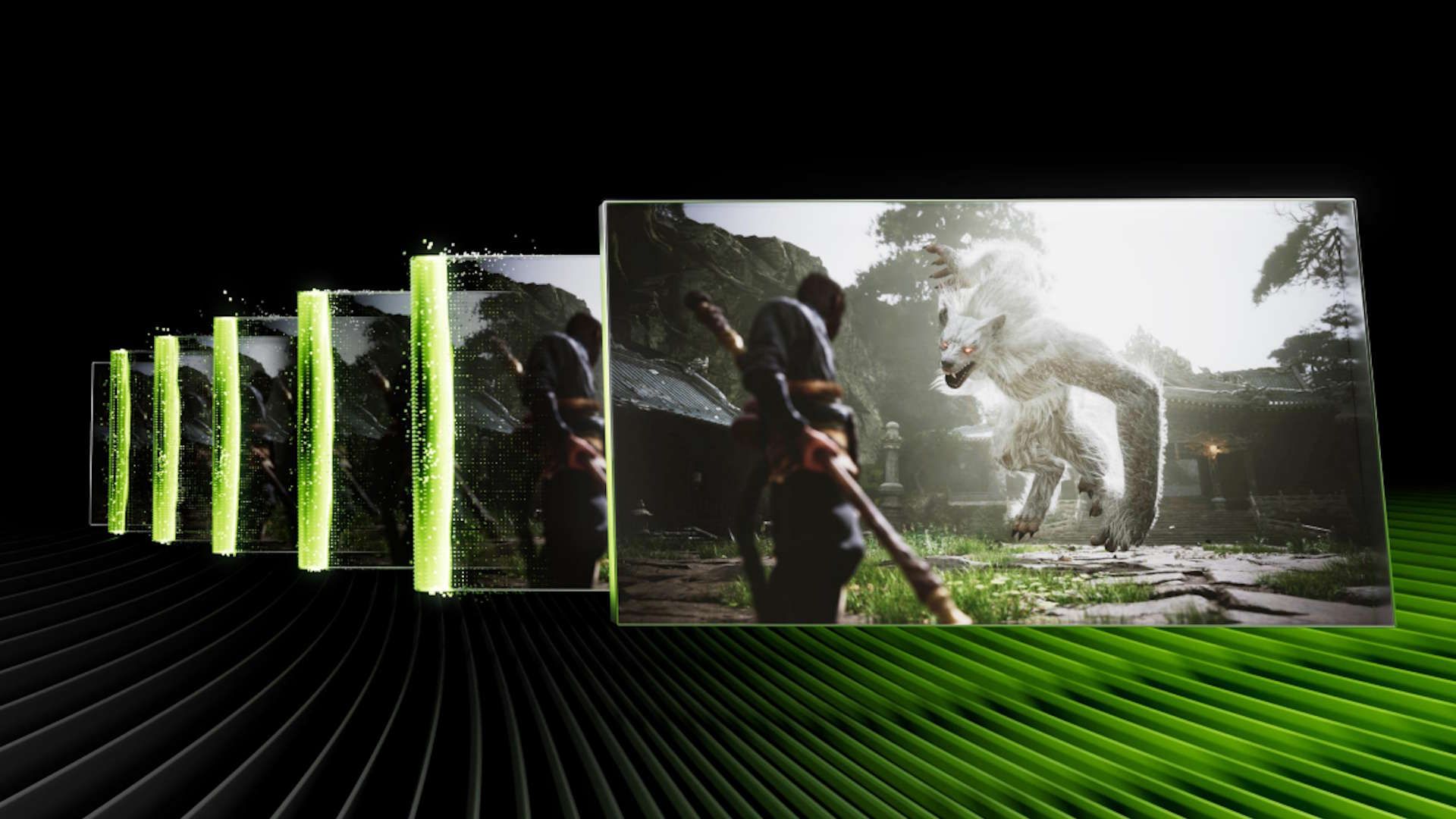
How to Enable and Use Dynamic Multi Frame Generation on RTX 50-Series GPUs
TL;DR
- Update the NVIDIA App to the latest beta on March 31 to unlock Dynamic MFG and 5x/6x multipliers for RTX 50-series cards.
- Turn on Dynamic Multi Frame Generation in supported games to let the GPU automatically adjust between 1x–6x frame generation to match your monitor’s refresh rate.
- Combine it with DLSS 4.5 for smoother high-refresh-rate gaming with better image quality than previous MFG.
Prerequisites
- GeForce RTX 50-series GPU (RTX 5090, 5080, 5070 Ti, 5070, or equivalent)
- A high-refresh-rate monitor (ideally 240 Hz or higher)
- Latest NVIDIA App beta (available starting March 31)
- A game that supports DLSS 4.5 or Multi Frame Generation
- Windows 10 or 11 with the latest GPU drivers
What is Dynamic Multi Frame Generation?
Dynamic MFG is the next evolution of NVIDIA’s Multi Frame Generation technology, exclusive to the RTX 50-series. Unlike the original fixed-multiplier MFG that always generated the same number of AI frames, Dynamic MFG can intelligently switch the multiplier on the fly—between 1x and 6x—to maintain a stable target frame rate that matches your monitor’s refresh rate.
This means your RTX 50 GPU can render one real frame and generate up to five AI frames (6x total), giving you up to 6 times the displayed frame rate while keeping latency manageable.
Step 1: Update the NVIDIA App to the March 31 Beta
- Open the NVIDIA App (make sure you’re using the new unified app, not GeForce Experience).
- Go to Settings > About and enable beta updates if not already active.
- On March 31, check for updates. The new beta will include DLSS 4.5 and Dynamic MFG support.
- Download and install the update (approximately 500–800 MB).
Tip: Restart your PC after installation to ensure the new DLSS libraries are loaded.
Step 2: Enable DLSS 4.5 and Dynamic MFG in Supported Games
Once the beta is installed:
- Launch a supported game (titles with DLSS 4.5 integration will appear first).
- Go into the game’s Graphics or Display settings menu.
- Set Upscaling Method to DLSS.
- Set Frame Generation to On or Dynamic (the exact label may vary by game).
- Look for a new Multi Frame Generation or MFG Mode option and select Dynamic.
- Choose your desired maximum multiplier (5x or 6x) or leave it on Automatic.
Example in-game settings (placeholder screenshot description):
Screenshot: Graphics menu showing DLSS 4.5 selected, Frame Generation = Dynamic, MFG Multiplier = 6x
Step 3: Configure Your Monitor and NVIDIA Control Panel
To get the most out of Dynamic MFG:
- Right-click on desktop → NVIDIA Control Panel.
- Go to Display > Change resolution and confirm your monitor is running at its maximum refresh rate (e.g., 360 Hz or 480 Hz).
- Under 3D Settings > Manage 3D Settings, set Low Latency Mode to Ultra and Maximum Frame Rate to match or slightly exceed your monitor’s refresh rate.
- Enable Reflex if the game supports it (Reflex 2 with Frame Warp is still pending).
Step 4: Test and Fine-Tune Performance
After enabling:
- Use the in-game overlay (Alt + R in most NVIDIA-supported titles) to monitor:
- Rendered FPS
- Final displayed FPS
- MFG multiplier being used in real time
- Play a demanding scene and watch Dynamic MFG automatically increase the multiplier when your base frame rate drops, then reduce it when GPU headroom returns.
- Aim for a final displayed FPS close to your monitor’s max refresh rate for the smoothest experience.
Example: On a 360 Hz monitor, if your GPU renders 80 FPS natively, Dynamic MFG can push the final output toward 360 FPS by using a ~4.5x multiplier on average.
Tips and Best Practices
- Start conservatively: Use 5x mode first to evaluate image quality and latency before jumping to 6x.
- Combine with high base resolution: DLSS 4.5’s improved transformer model works better when the internal render resolution isn’t extremely low.
- Monitor latency: While Dynamic MFG reduces the need for extreme multipliers, input lag can still increase at 6x. Use NVIDIA Reflex where available.
- Best for high-refresh-rate users: This feature shines on 240 Hz, 360 Hz, and 480 Hz displays where maintaining peak refresh rate was previously difficult.
- Driver cleanliness: Perform a clean install of the new beta driver using the NVIDIA App’s custom installation option and check “Perform a clean installation.”
Common Issues
### Why isn’t Dynamic MFG appearing in my game?
Make sure you’ve installed the March 31 NVIDIA App beta. The feature is part of DLSS 4.5 and requires both the new driver and game-side integration. Restart the game after updating.
### Why does my frame rate feel stuttery even with 6x MFG?
Dynamic MFG adjusts multipliers dynamically. If your base rendered FPS fluctuates wildly, the transitions between multipliers can feel uneven. Try locking your base frame rate slightly lower using NVIDIA Control Panel or in-game caps.
### Is 6x mode usable for competitive gaming?
Generally no. High multipliers increase latency. Use 2x–3x or disable MFG entirely for competitive titles and rely on high native frame rates + Reflex.
### Will this work on my RTX 40-series card?
No. Dynamic MFG and the 5x/6x modes are currently exclusive to RTX 50-series GPUs.
Next Steps
After setting up Dynamic MFG, explore these upcoming titles that will take full advantage of the technology:
- Control: Resonant
- 007: First Light
- Pragmata
- The Witcher IV (RTX Mega Geometry optimized, coming 2027)
Also experiment with the improved ComfyUI “app view” for local AI content creation if you’re into generative workflows, as the same driver update brings efficiency improvements.
Keep an eye on future NVIDIA App updates for Reflex 2 with Frame Warp, which is expected to further reduce the latency penalty of high-multiplier frame generation.
## Sources