
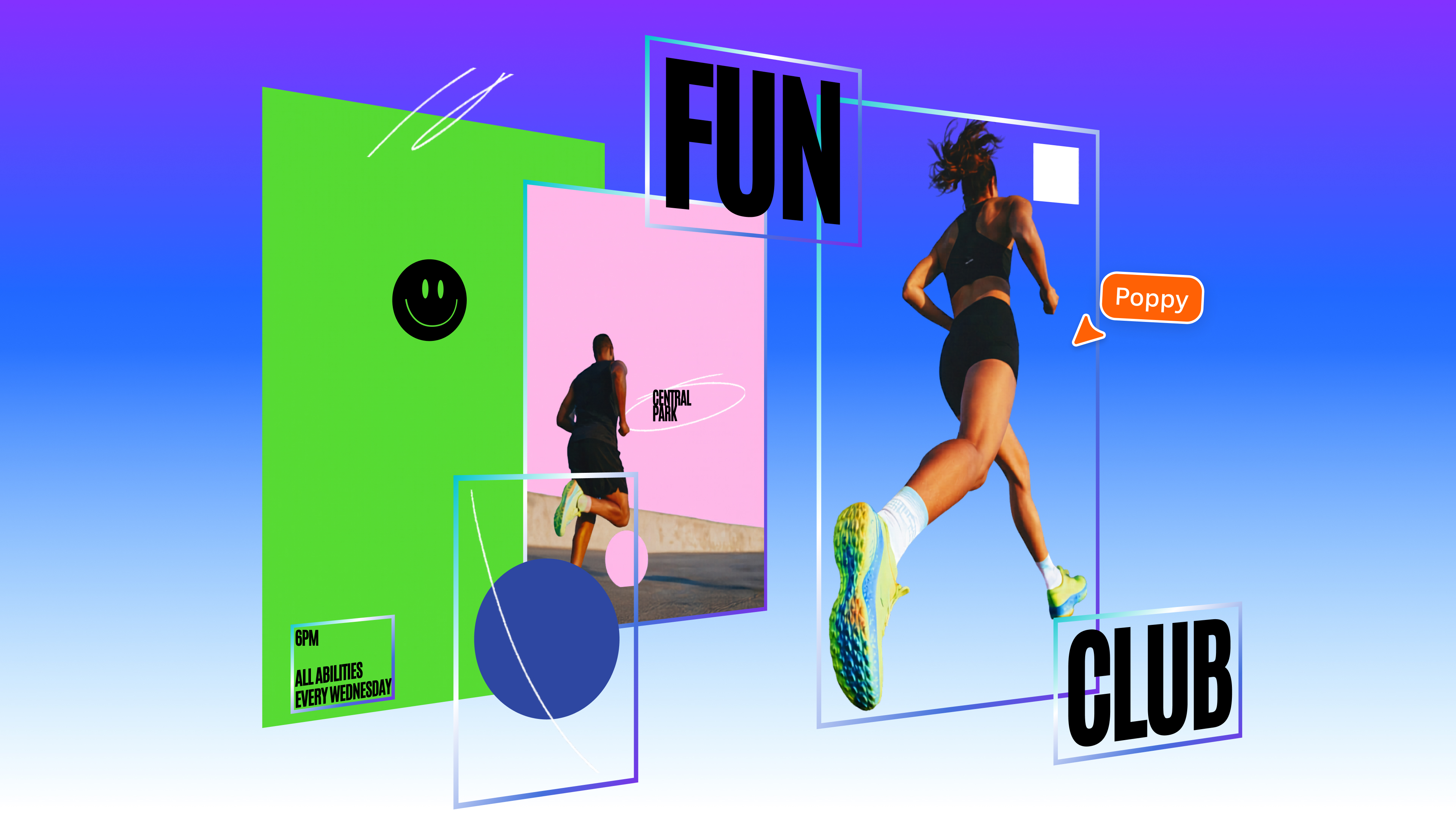
How to Turn Flat AI Images into Editable Layered Designs with Canva’s Magic Layers
TL;DR
- Upload any flat image or AI-generated design into Canva and use the new Magic Layers tool to automatically convert it into fully editable layers.
- Select, move, resize, recolor, or delete individual objects, text, and graphics while preserving the original layout.
- Available today in public beta for users in the US, UK, Canada, and Australia—no need to restart your project from scratch.
Prerequisites
Before you begin, make sure you have:
- A free or paid Canva account (Magic Layers works in both).
- Access to the Canva web editor (the feature is rolling out first on desktop/web; mobile support may vary).
- An image or AI-generated design you want to make editable—PNG, JPG, or any static visual works.
- Location in one of the supported countries: United States, United Kingdom, Canada, or Australia (VPN may be required otherwise).
- Basic familiarity with Canva’s drag-and-drop interface.
Step 1: Log in and Open or Create a Design
- Go to www.canva.com and sign in.
- Click Create a design or open an existing project.
- If starting fresh, choose a custom size or any template that matches your needs (social media post, presentation slide, poster, etc.).
Step 2: Upload Your Flat Image or AI-Generated Design
- In the left sidebar, click Uploads.
- Click Upload files and select the image you want to convert.
- Drag the uploaded image onto your canvas.
- Tip: For best results, use high-resolution images (at least 1024×1024 pixels). AI-generated outputs from tools like Midjourney, DALL·E, or Canva’s own Magic Studio perform especially well.
Step 3: Activate Magic Layers
- Click once on the image you just placed on the canvas to select it.
- Look for the Magic Layers button that appears in the top toolbar or in the contextual “Edit” menu (it may also appear automatically after upload in the beta).
- Click Magic Layers (or Apply Magic Layers).
- Canva’s AI will analyze the image—usually in under 60 seconds—and break it into separate editable layers.
- You’ll see a progress indicator while the AI processes the design.
Step 4: Edit Individual Layers
Once processing completes:
- Click on any object, person, background element, or text in the image.
- The selected element will highlight with Canva’s standard bounding box and editing handles.
- Use the top toolbar to:
- Change color, opacity, or add effects.
- Resize, rotate, or flip the element.
- Delete it entirely by pressing the Delete key.
- Replace it with another graphic or AI-generated element using Canva’s Magic Studio tools.
- Text layers become fully editable: click to change font, size, color, or content.
- Background layers can be swapped with solid colors, gradients, or new images.
Example workflow:
You generated a flat image of a “cozy coffee shop interior” with Midjourney. After running Magic Layers you can now:
- Select the coffee cup and change its color to match your brand.
- Delete the laptop on the table and replace it with a notebook.
- Change the text on the wall sign without regenerating the entire scene.
Step 5: Save and Export Your Edited Design
- Once satisfied, click Share in the top right.
- Choose Download and select your preferred format (PNG, JPG, PDF, etc.).
- Alternatively, click Share → Link to collaborate with teammates who can continue editing the layered version.
Tips and Best Practices
- Quality in, quality out: Clean, high-contrast images convert more accurately. Blurry or extremely complex compositions may produce imperfect layer separation.
- Combine with Canva’s other AI tools: After Magic Layers, use Magic Edit, Magic Eraser, or the new foundational design model (which generates layered outputs natively) for even more control.
- Work non-destructively: Duplicate the original image layer before applying Magic Layers so you can always revert.
- Batch process: Upload multiple similar images in one project and process them one by one—Canva remembers the style across edits.
- Performance: Processing time is usually under a minute, but very large files may take longer. Stay on the same tab while the AI works.
- Use layers panel: After conversion, open the Layers panel (usually on the right) to see the full hierarchy, rename layers, and reorder them.
Common Issues
### Why isn’t the Magic Layers button appearing?
The feature is currently in public beta and limited to users in the US, UK, Canada, and Australia. Check your account location or try refreshing the page. It may also only appear after selecting an uploaded image.
### The AI separated layers incorrectly. What now?
Some complex elements may merge or split inaccurately. Use Canva’s manual layer tools (cut, mask, or draw your own shapes) to fix issues. You can also delete and regenerate specific parts with Magic Studio.
### Processing is taking longer than a minute.
Large or very detailed images require more computation. Wait until the spinner completes. Avoid closing the browser tab during processing.
### I’m outside the supported countries. Can I still use it?
Officially, no. Some users report success with a VPN set to a supported country, but results are not guaranteed and may violate Canva’s terms.
### Text isn’t editable after conversion.
If the AI didn’t detect text properly, use Canva’s Magic Edit → Text tool to overlay new editable text on top.
Next Steps
Now that you can rescue flat AI images, explore these related features:
- Try Canva’s new foundational design model that generates native layered outputs instead of flat images.
- Experiment with Magic Studio’s full suite (Magic Expand, Magic Animate, Background Remover).
- Create a reusable template from your edited layered design so your team can quickly adapt it.
- Check back frequently—Canva is rapidly expanding beta access and adding new countries.
Magic Layers removes one of the biggest frustrations with generative AI design: the inability to edit outputs. With this tool, you can now treat AI images the same way you treat native Canva projects—fully flexible and collaborative.
Sources
- Canva’s new editing tool adds layers to AI-generated designs
- Canva can now turn a flat AI image into a fully editable design in seconds
- Canva May Have Just Cracked One of the Biggest Issues With AI Images
- Canva launches its own design model, adds new AI features to the platform
- Canva Introduces Magic Layers, Turning Static AI Outputs Into Editable Designs