
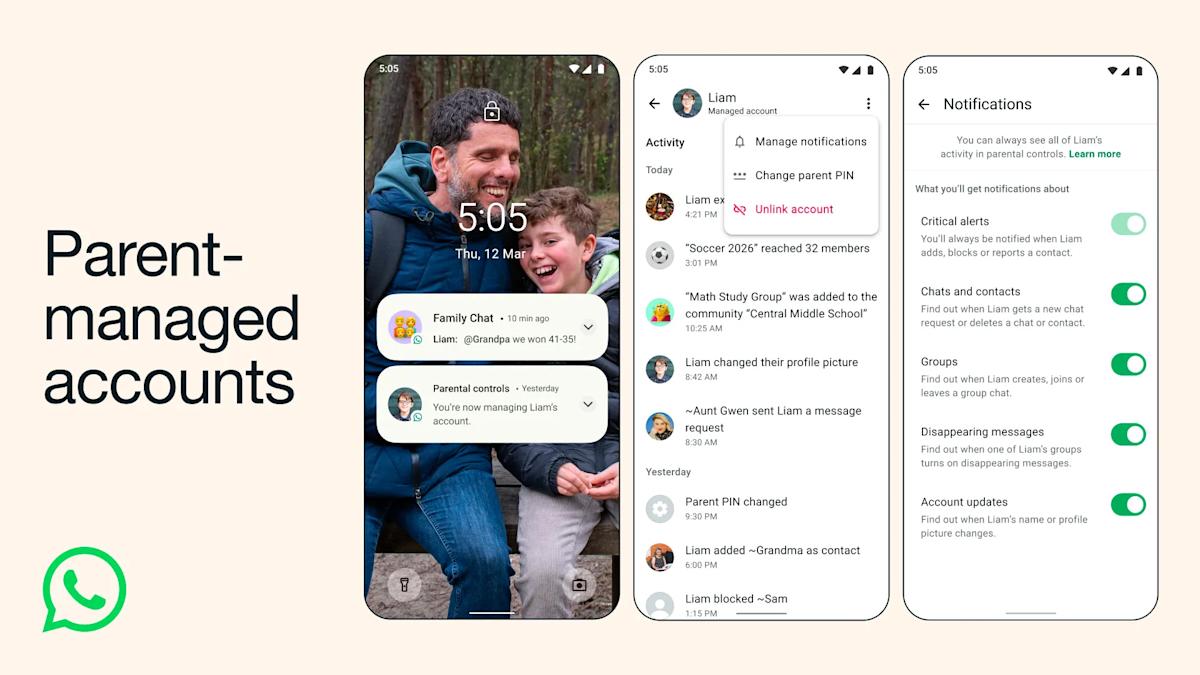
How to Set Up Parent-Managed WhatsApp Accounts for Kids Under 13
TL;DR
- During WhatsApp registration on a child’s device, select the new “parent-managed account” option and link it to your phone by placing the two devices next to each other.
- Once linked, you control who can message your child, which groups they can join, and all privacy settings from your own WhatsApp app.
- The child’s account is limited to messaging and calls only — no Channels, Status, location sharing, or Meta AI — with end-to-end encryption and PIN protection.
Prerequisites
Before you begin, make sure you have:
- The latest version of WhatsApp installed on both your phone and your child’s device.
- A working WhatsApp account on your own phone (the parent/guardian device).
- Your child’s device ready for a fresh WhatsApp installation or account creation.
- Physical access to both phones so you can bring them close together during the linking step.
- Awareness that this feature is rolling out gradually; if you don’t see the option yet, check for app updates over the coming weeks.
Step 1: Prepare Both Devices
Open WhatsApp on your phone and ensure it is fully updated. On your child’s device, either uninstall/reinstall WhatsApp or start the registration flow with a new phone number. The parent-managed account option appears during the initial setup when WhatsApp detects the user is under 13 (based on birthdate or device signals).
Practical tip: Use the same Wi-Fi network for both devices to speed up the linking process.
Step 2: Start Registration and Choose Parent-Managed Account
On the child’s device:
- Open WhatsApp and tap Agree and continue.
- Enter the child’s phone number.
- When prompted for age or account type, select the parent-managed account option that now appears for users under 13.
- Follow the on-screen instructions that tell you to bring your (parent) phone close to the child’s device.
WhatsApp will display a QR code or use Bluetooth/NFC proximity to pair the two accounts. Place the phones back-to-back or side-by-side until the linking completes. This step creates a secure parent-child relationship that cannot be undone by the child.
Step 3: Configure Contact and Group Permissions
Once linked, the parent-managed account dashboard appears in your WhatsApp under Settings → Linked Accounts or a new “Parent Controls” section.
From your phone you can:
- Choose Only saved contacts (default) or manually approve unknown contacts.
- Approve or block group invites before your child sees them.
- Decide whether message requests from unknown numbers appear first in a separate folder.
All changes you make are immediately enforced on the child’s device. The child cannot override these settings.
Code-like example of what the flow looks like (text description):
Parent Phone → Settings → Parent Controls → [Child’s Account]
  └─ Contact Privacy: Only saved contacts
  └─ Group Invites: Require parent approval
  └─ Message Requests: Filtered folder (child cannot open without parent)
Step 4: Set Up PIN Protection and Privacy Defaults
The parent-managed account is automatically PIN-protected. Only you can change privacy settings. On your device:
- Go to the managed account settings.
- Enable or customize the 6-digit PIN that locks changes.
- Review default restrictions: disappearing messages are disabled in one-to-one chats, Status and Channels are unavailable, and Meta AI is completely blocked.
Your child will see a simplified interface showing only the Chats and Calls tabs. They cannot access the three-dot menu options that lead to restricted features.
Step 5: Test the Account with Your Child
Hand the child’s device back and ask them to:
- Send you a test message (it should arrive normally).
- Attempt to join a group — they should see a notification that it requires your approval.
- Try to open a message request from an unknown contact — it should stay in the requests folder until you approve it from your phone.
This hands-on test confirms the controls are working before your child begins regular use.
Tips and Best Practices
- Start small: Only allow a few trusted family members and school friends in the contact list for the first week.
- Regular reviews: Check the managed account settings every few weeks. New contacts or group invites appear as notifications on your phone.
- Use the same phone number policy: The child’s account should use a dedicated SIM or number. Sharing a number with another family member can cause confusion.
- Educate your child: Explain that unknown messages go to a special folder and that you must approve new groups. This builds good digital habits.
- Monitor battery and data: Because the accounts stay linked, occasional background sync happens; ensure both devices have sufficient battery during initial setup.
- Family group chat: Create a family group immediately so your child has a safe place to message multiple trusted people at once.
Common Issues
Why am I not seeing the parent-managed account option?
The feature is rolling out gradually over the coming months. Make sure both apps are updated to the latest version. If it still doesn’t appear, wait 1–2 weeks and check again.
Can my child change the settings or remove the link?
No. The account is PIN-protected and only the linked parent phone can modify privacy settings or unlink the accounts.
What happens if I lose my phone?
You will need to log in to WhatsApp on a new device and re-verify the parent link. Keep your recovery PIN or email associated with your account safe.
Why can’t my child see Channels or use Meta AI?
These features are intentionally disabled for parent-managed accounts to reduce exposure to unmoderated content and AI interactions.
The linking step fails when I put the phones together.
Ensure Bluetooth and location services are enabled on both devices. Move to an area with good signal and try again. Restart both phones if the QR code or proximity pairing does not appear.
Next Steps
After setup, explore the teen account controls Meta introduced for 13–15 year olds on Facebook and Messenger — the same parent dashboard is expanding across Meta apps. Consider setting screen-time limits outside of WhatsApp using your device’s built-in parental controls. Stay updated by checking WhatsApp’s in-app announcements or the official Help Center for new safety features.
Once comfortable with messaging and calls, you may gradually approve additional trusted contacts. Always review message request notifications promptly so your child does not feel isolated while staying safe.
Sources
- Engadget – Meta will let kids under 13 use WhatsApp with parent-managed accounts
- The Times of India – Meta launches parent-managed accounts on WhatsApp
- Gadgets 360 – WhatsApp Adds Support for Parent-Managed Accounts
- TechCrunch – WhatsApp is launching parent-linked accounts for pre-teens
- Sky News – Under-13s to be allowed on WhatsApp with parental consent
(Word count: 892)