
Virtualizing Your Game Studio: A Vibe Coding Guide to Building with NVIDIA RTX PRO Server
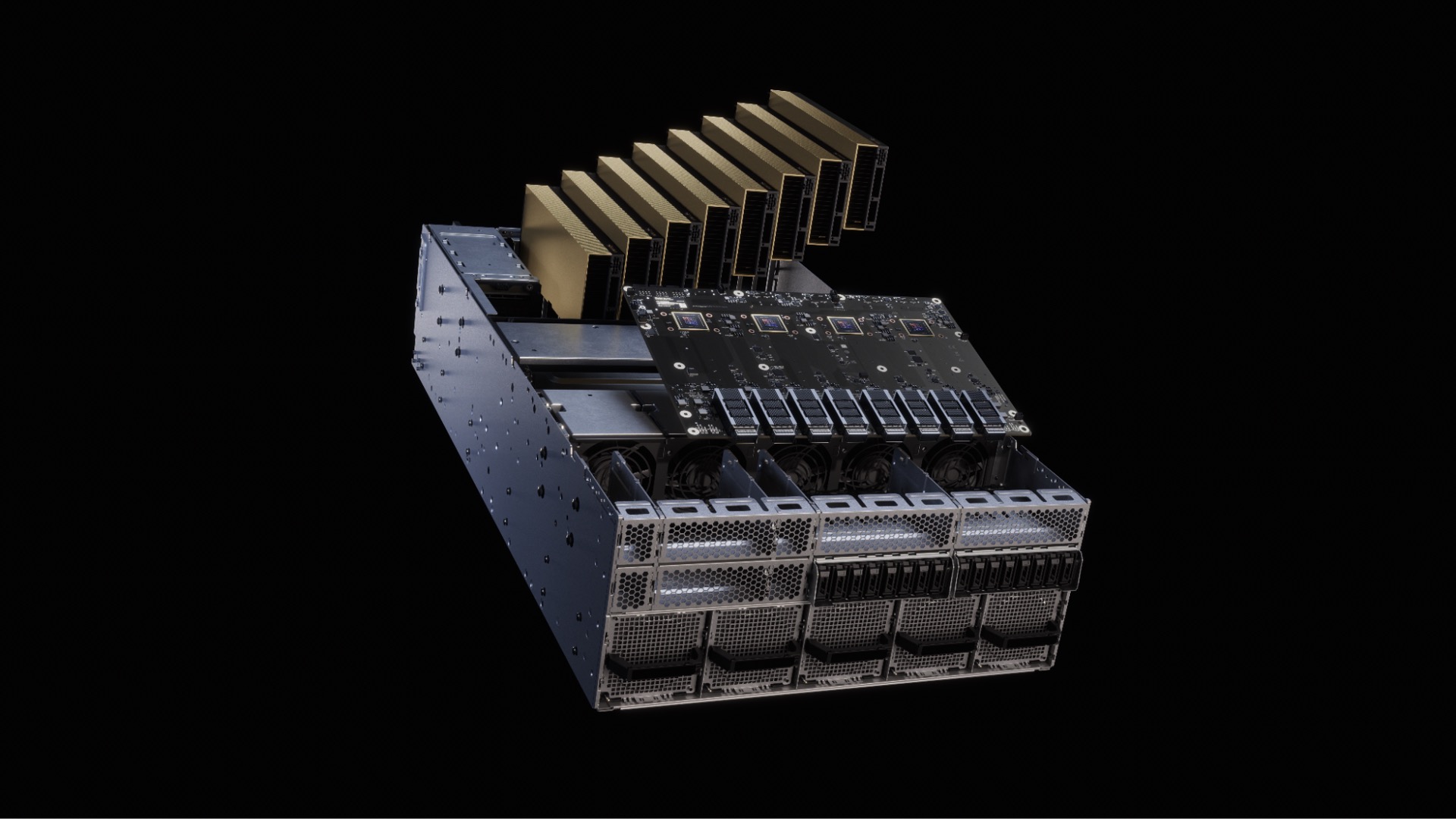
NVIDIA RTX PRO Server lets you centralize and virtualize game development workflows for artists, engineers, AI researchers, and QA teams using shared RTX PRO 6000 Blackwell Server Edition GPUs and NVIDIA vGPU software, delivering workstation-class performance from the data center.
This announcement at GDC 2026 marks a shift from fragmented, desk-bound GPU workstations to pooled, scalable infrastructure. Studios can now run 3D content creation, coding, large-model AI inference, and automated testing on the same hardware, dynamically reallocating resources between interactive daytime work and overnight AI/simulation jobs. The RTX PRO 6000 Blackwell Server Edition GPU brings 96GB of memory per GPU, NVIDIA Multi-Instance GPU (MIG) partitioning, and compatibility with the same Blackwell architecture used in GeForce RTX 50 Series cards. This unlocks consistent environments across distributed teams, contractors, and global studios while improving utilization, security, and reproducibility.
Why this matters for builders
Game development has outgrown per-person workstations. Larger worlds, AI-assisted pipelines, and distributed teams create hardware contention, divergent driver/tooling, and siloed AI infrastructure. RTX PRO Server solves this by moving critical production work into a centralized, virtualized data center layer. You get the responsiveness of a local RTX workstation with the operational benefits of cloud-native resource pooling.
For indie-to-AAA builders who already use AI coding tools, this means you can now treat your studio’s GPU layer as programmable infrastructure instead of physical desks. You can spin up identical virtual workstations for a contractor in another country, run overnight AI training on the same GPUs used for artist review during the day, and give QA teams scalable validation rigs that match production hardware.
When to use it
- Your team is distributed across offices or contractors and you waste time reproducing bugs caused by hardware differences.
- You want to run large-language-model coding agents or generative AI tools alongside real-time 3D work without maintaining separate AI servers.
- QA and automation capacity is a bottleneck and you need to scale validation overnight without buying more physical machines.
- You want to improve GPU utilization from the typical 20-30% seen in workstation fleets to 70%+ by time-sharing resources.
- You need secure, isolated GPU instances for multiple teams while maintaining enterprise IT compliance.
The full process — Building an AI-assisted virtual studio pipeline
Phase 1: Define the goal Start with a concrete outcome. Good goal example: “Enable a 12-person distributed team to have identical virtual RTX workstations for Unreal Engine 5 development, run overnight AI texture upscaling and coding-agent tasks, and give QA three scalable validation instances that match production Blackwell GPUs.”
Write this as a one-page spec. Include:
- Number of concurrent artists, developers, AI researchers, QA testers
- Target applications (Unreal Editor, Maya, Houdini, custom Python AI tools, automated playtesting)
- Performance SLAs (e.g., 60+ fps at 4K in editor viewport for artists)
- Security and isolation requirements
- Budget and target utilization rate
Phase 2: Shape the spec and prompt your coding assistant Turn the goal into a precise system prompt for Cursor, Claude, or your preferred AI coding tool.
Starter prompt template (copy-paste ready):
You are a senior technical director at a mid-size game studio adopting NVIDIA RTX PRO Server virtualized infrastructure.

Project: Build an internal "Studio GPU Orchestrator" tool that lets team leads request virtual workstations and AI job slots.

Constraints:
- Use NVIDIA vGPU software and RTX PRO 6000 Blackwell (96GB) profiles
- Support MIG partitioning for up to 48 concurrent users per GPU
- Must integrate with our existing LDAP/Okta and Jenkins/CI system
- Provide identical Unreal Engine 5.4 environments for all users
- Night mode: reallocate 70% of GPU memory to AI training/inference workloads
- Day mode: prioritize interactive graphics latency < 30ms

Deliver:
1. Terraform module for provisioning vGPU VMs on VMware vSphere or Nutanix
2. Python FastAPI backend that exposes a simple team-lead dashboard
3. Sample MIG profile definitions for artist (graphics-heavy) vs researcher (large-model) workloads
4. Monitoring dashboard queries for GPU utilization and session latency

Output clean, production-ready code with comments explaining why each MIG or vGPU setting matters for game dev.
Refine this prompt with your actual stack once you have the hardware.
Phase 3: Scaffold the infrastructure Work with your IT or cloud team to stand up the first RTX PRO Server node. Key technical decisions:
- Choose hypervisor (VMware vSphere with vGPU, Citrix, or Nutanix AHV)
- Define MIG profiles. Example profiles based on the 96GB GPU:
- Graphics artist: 2x 24GB instances (good for Unreal Editor + Substance)
- AI researcher: 1x 72GB instance (fits large diffusion or LLM fine-tuning)
- QA automation: 4x 16GB instances (perfect for parallel playtesting)
- Use NVIDIA vGPU software to create virtual workstations that appear as local RTX 6000-class cards to the OS and applications.
Validate the base image:
- Install Windows 11 or Linux guest
- Install latest RTX PRO drivers
- Confirm Unreal Engine 5 editor launches and viewport performance matches a physical RTX 5090-class workstation
Phase 4: Implement the orchestration layer Build a lightweight internal tool that lets non-technical leads request resources. Here’s a minimal FastAPI snippet structure:
from fastapi import FastAPI
from pydantic import BaseModel
import subprocess

app = FastAPI()

class SessionRequest(BaseModel):
    team: str
    role: str  # "artist", "developer", "ai_researcher", "qa"
    hours: int

@app.post("/request-session")
async def request_session(req: SessionRequest):
    # Call Terraform or vGPU management API to spin up appropriate MIG slice
    profile = get_mig_profile(req.role)
    vm_name = f"{req.team}-{req.role}-{int(time.time())}"

    # Example: use govmomi or vSphere Python SDK
    result = subprocess.run(["terraform", "apply", "-var", f"vm_name={vm_name}", "-var", f"mig_profile={profile}"],
                          capture_output=True)

    return {"vm_name": vm_name, "status": "provisioning", "expected_latency_ms": 25}
Extend this with proper authentication, quota management, and automatic night-time rebalancing logic using MIG reconfiguration APIs.
Phase 5: Validate performance and consistency Run a structured validation checklist:
- Graphics fidelity: Compare screenshots and frame timing between virtual workstation and physical RTX workstation. Target <5% variance.
- AI workload compatibility: Fine-tune a 13B model or run Stable Diffusion XL inference while an artist works in the same MIG-isolated GPU. Confirm no contention.
- Reproducibility: Have two developers on different continents open the same Unreal project. Confirm identical crash behavior and shader compilation.
- QA scale test: Launch 20 automated gameplay sessions overnight. Measure pass/fail rate and GPU utilization.
- Latency: Measure remote desktop (Teradici, NICE DCV, or Parsec) input-to-photon latency. Aim for <30ms for comfortable modeling.
Phase 6: Ship safely Roll out in phases:
- Pilot with one friendly team (4-6 people) for two weeks.
- Document golden VM images and MIG profiles in your internal wiki.
- Add cost tracking — track GPU-hour usage per department.
- Create a “request resources” Slack bot that hits your FastAPI endpoint.
- Set up automated nightly MIG rebalancing scripts.
Once stable, expand to contractors and additional studios.
Pitfalls and guardrails
### What if my artists complain about input latency? Start with NICE DCV or Teradici PCoIP. These are optimized for creative workloads. Measure latency with a simple timer tool. If >35ms, check network (need <10ms RTT to data center) or reduce resolution/stream quality.
### What if my AI workloads crash the shared GPU? Use MIG partitioning aggressively. A 72GB instance for model training is completely isolated from the 24GB graphics instance on the same physical GPU. Test isolation by running a graphics-heavy Unreal session while training simultaneously.
### What if we don’t have an on-prem data center? Look at cloud providers offering G4 VMs with RTX PRO 6000 Blackwell (Google Cloud already announced support). Start there for faster iteration before committing to on-prem servers.
### What if my current tools don’t recognize the virtual GPU? Most DCC tools and game engines see the vGPU as a standard RTX PRO card. Update to latest drivers. For edge cases, NVIDIA provides vGPU-specific licensing and compatibility lists — check them before committing a full team.
### What if utilization is still low? Implement a simple scheduler that automatically switches MIG profiles at 6pm/8am. Overnight, consolidate into fewer large-memory instances for AI. During day, fragment into more smaller graphics instances.
What to do next
- Book time with your IT team to evaluate one RTX PRO Server node.
- Run the validation checklist above on your most important production tool (likely Unreal Editor).
- Build the minimal “request-session” API and connect it to Slack.
- Measure current studio GPU utilization for one week as a baseline.
- Expand the pilot to a second team and document ROI (hours saved, bugs avoided, GPU utilization increase).
- Explore integrating your AI coding agents directly into the virtual workstations so they have access to the full 96GB when needed.
Virtualizing your studio infrastructure is no longer a science project. With RTX PRO Server and the 96GB Blackwell GPU, you can treat compute as a programmable, shared resource that scales with your team and AI ambitions.
The studios that move first will ship faster, debug less, and spend far less on underutilized hardware.
Sources
- NVIDIA Blog: “NVIDIA Virtualizes Game Development With RTX PRO Server” — https://blogs.nvidia.com/blog/gdc-2026-virtual-game-development/
- NVIDIA RTX PRO Server product page
- GDC 2026 NVIDIA booth announcements
- Google Cloud G4 VM announcement with RTX PRO 6000 Blackwell
- Official NVIDIA vGPU and MIG documentation (check latest compatibility matrices)
(Word count: 1,248)